You can integrate the tracking code on your publication, from the the Settings section > General settings > SEO & Analytics > Add Analytics tracker.
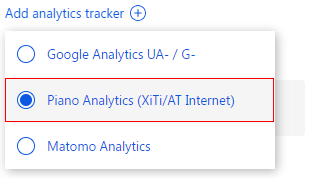
For this tracker you are required to fill in two parameters: "Piano Analytics Property ID" and "Piano Analytics Collect Domain".

If your publication uses a cookie / GDPR consent banner, Piano Analytics starts only after the visitor accepts analytics cookies. Until then, no events are sent.
What Webpublication Sends to Piano
Once Piano Analytics is installed, Webpublication sends two kinds of events:
page.display— page / spread / panel views (Piano standard page-view event)wp_event— user interactions (menu, share, zoom, enrichment clicks, downloads, etc.)
In reports, filter on wp_event for interactions, and on page.display for page views.
Enabling Custom Dimensions in Piano Analytics Reports
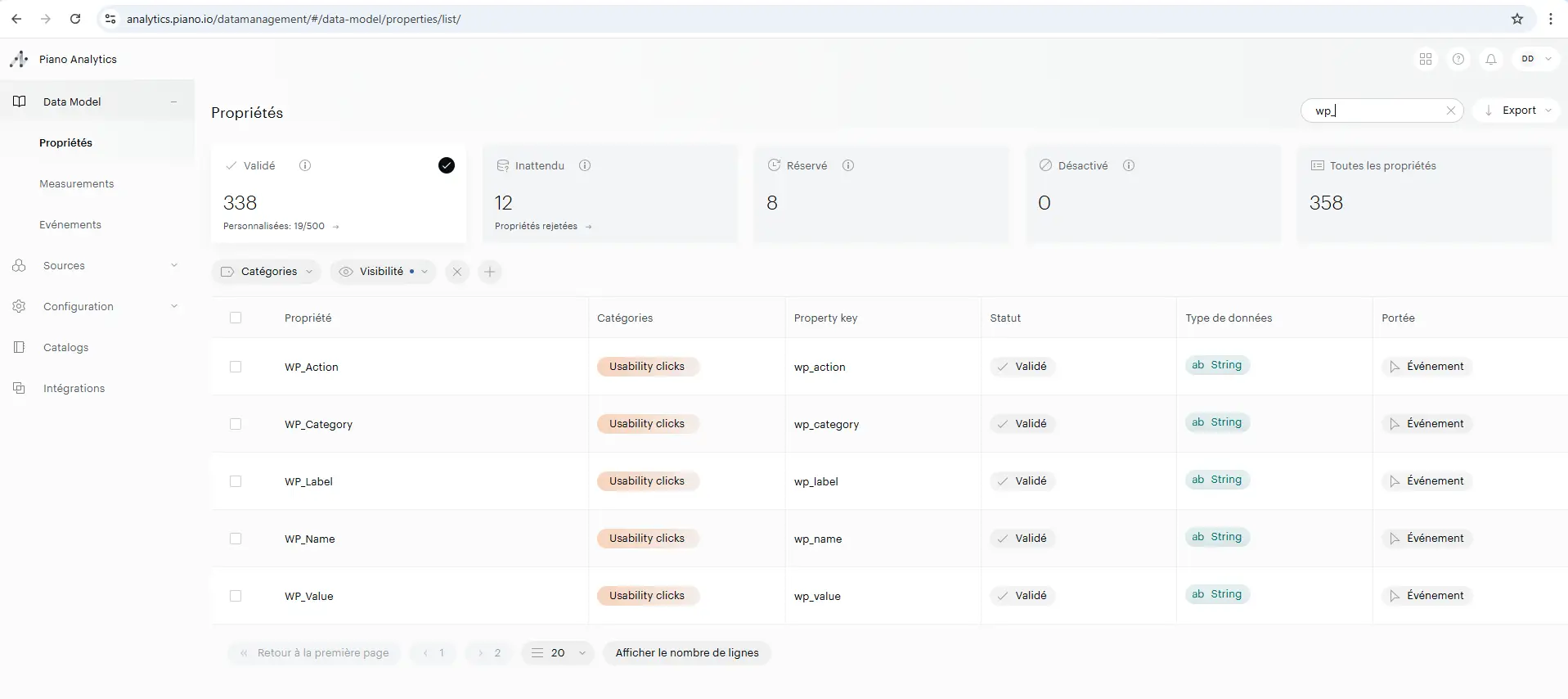
To view detailed custom data in your reports, declare the following custom properties in the Piano data model.
Property names use snake_case (for example wp_action, not wpAction).
Properties for interactions (wp_event)
wp_category— event category (for examplenavigation,share,enrichment,download,menu)wp_action— event action (for examplepageView-3,share-Facebook,menuOpen)wp_label— human-readable labelwp_value— optional complementary value; often empty
Property for page views (page.display)
wp_publication_path— Webpublication path fragment for the viewed page or panel
Piano also receives standard page-view fields on page.display: page (title) and url (full hashed URL).
How to Declare the Custom Properties
Navigate to Settings > Data Management > Properties
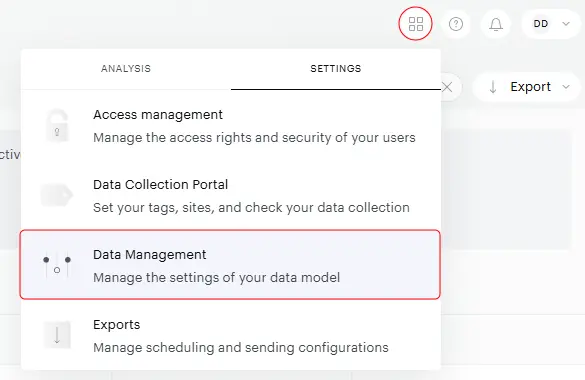
If the publication has already been used and events were tracked, these properties may already exist in the "Unexpected" tab.
In that case, click on each property and validate it by setting its type (usually String) and scope (Event).
If the properties are not present:
Click the ( + ) button in the bottom-right corner
Create each property manually using the names listed above
Make sure to set:
Type: String
Scope: Event
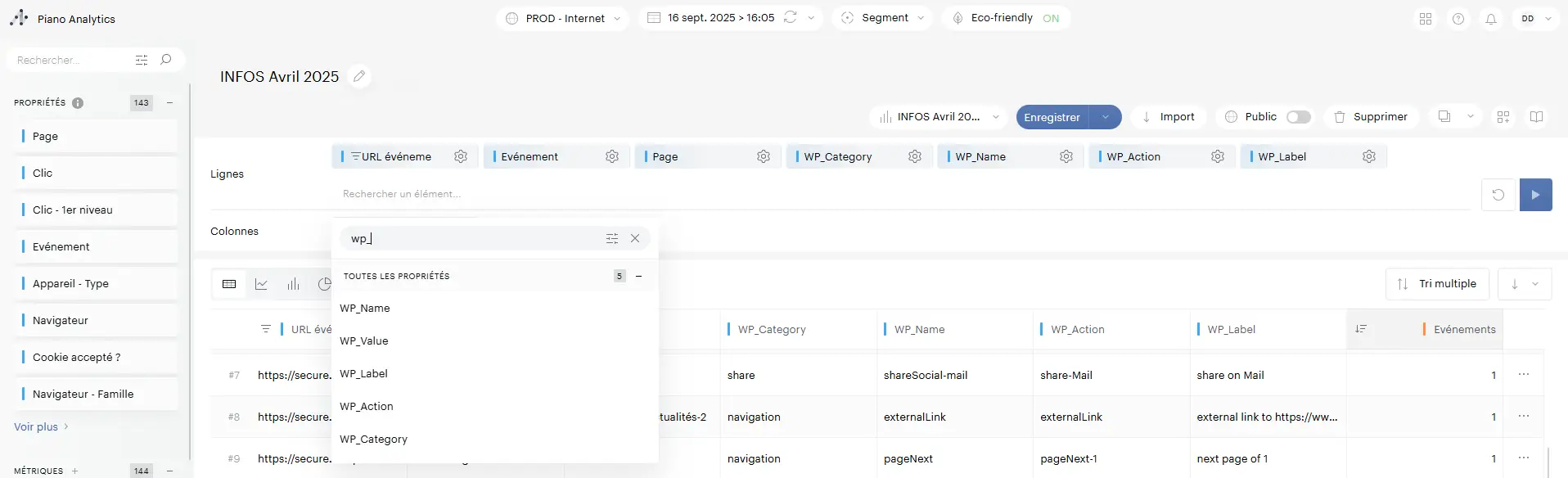
Using the Properties in Reports
Once the properties are validated:
- Go to your report or the Explorer
- For interactions, focus on the
wp_eventevent, then break down bywp_category,wp_action, andwp_label - For page views, focus on
page.displayand usewp_publication_path,page, orurl - Search for the
wp_prefix to find your custom dimensions - You can now add them to your report as columns, filters, or breakdowns

Example Payloads
Typical interaction event (wp_event):
wp_category:navigationwp_action:pageView-3wp_label:page 3 viewedwp_value: empty or optional
Typical page-view event (page.display):
page: page title (for examplePage 3or a chapter-based title)url: full URL including the hash fragmentwp_publication_path: path fragment such as/publication/#page=3
How to Verify the Setup
- Open the publication and accept analytics cookies if a consent banner is shown
- Change page / spread and confirm a
page.displayevent is sent - Trigger an interaction (open the menu, share, click an enrichment) and confirm a
wp_eventis sent with thewp_*properties - In Piano, open Settings > Data Management > Properties, validate any properties still in the Unexpected tab
- Allow a short processing delay before expecting complete data in Explorer / reports
No comments.