Here is a list of improvements and fixes introduced in version 3.72, including hotfixes through version 3.72.6.
Plugin
Company SSO login
Users can now sign in through their company SSO instead of using a Webpublication account. The login screen includes an “Other login options” flow where users enter their company name and complete authentication in their browser, while the Plugin waits and finalizes the connection automatically.
Custom CSS class names for exported elements
It is now easier to target elements exported from InDesign in custom CSS, JavaScript or admin configurators. A new Custom class name field can be used to define a reliable class on selected elements, including editable and dynamic elements.
Individual popup style settings and improved close-button color handling
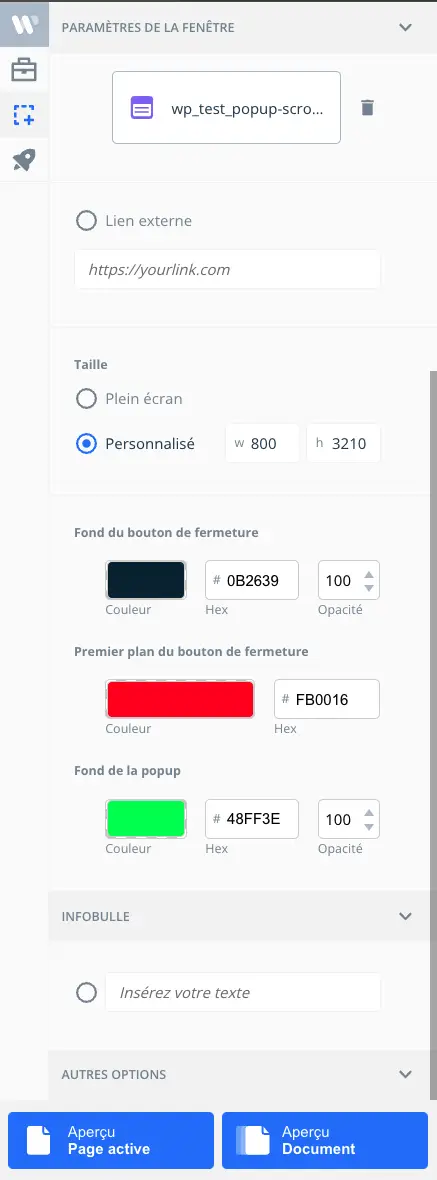
Popup styling can now be configured directly in the Plugin for each individual popup. Previously, users could only define general styling rules that applied to all popups in a publication.
For each popup, the Plugin now provides more precise control over its appearance, including:
- Popup size
- Popup background color
- Close-button background color
- Close-button icon color
- Close-button opacity
These individual popup settings take priority over the general publication settings. This makes it possible to adapt each popup to its content and layout while keeping full control from the Plugin interface.
How close-button colors are determined
The popup close button has also been redesigned. Previously, it appeared as a simple X icon inside a horizontal bar. It is now displayed as an X inside a circle.
The new close button uses two separate colors:
- Circle color: the color of the circle around the X
- X color: the color of the X icon inside the circle
When close-button colors are not defined for the individual popup in the Plugin, the Reader checks the general publication settings in:
Publication settings → Design → Pop-up style
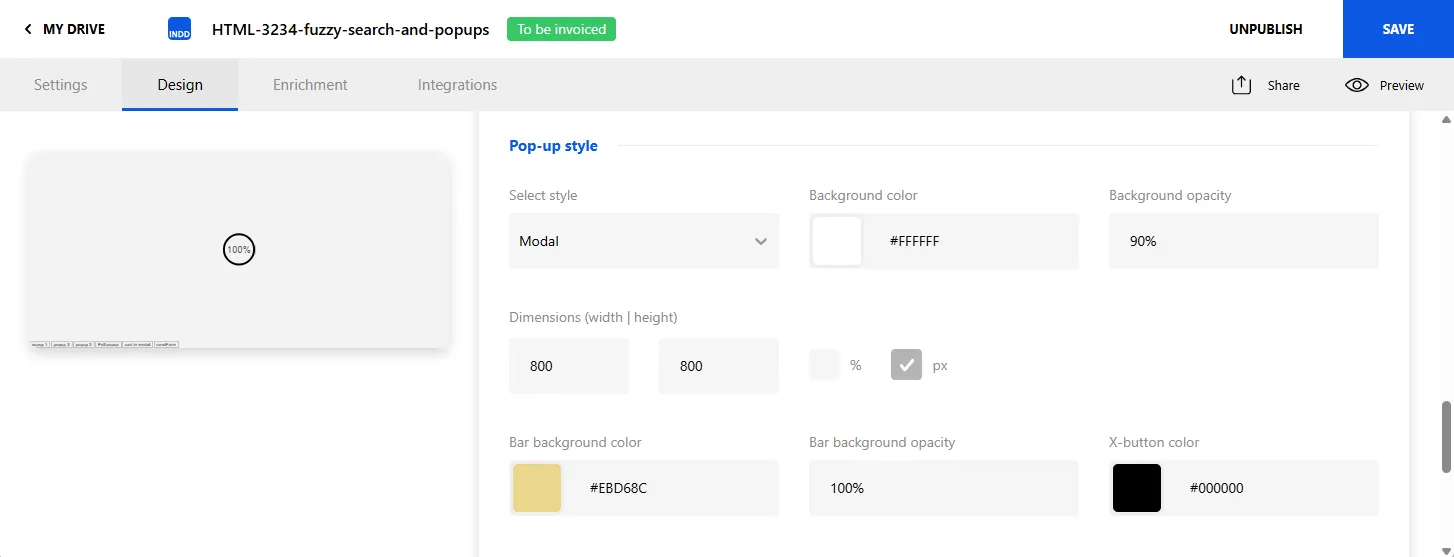
The following legacy settings are reused:
- X-button color now controls the color of the circle
- Bar background color controls the X icon and, when a top bar is present, the background color of that bar
Both colors must be available and provide sufficient contrast. If one of the values is missing, or if the contrast between the circle and the X is too low, the Reader automatically applies the safe default colors:
- Black circle:
#000000 - White X:
#ffffff
A WCAG-based contrast check is applied with a minimum ratio of 2:1. This prevents unreadable combinations such as a white X on a white circle.
Fallback configuration in styles.css
When no individual Plugin colors are provided, close-button colors can also be defined in the publication template’s styles.css file using the following configuration:
.popupCloseButton {
  circle: #ffffff;
  x: #000000;
}
The Reader resolves the close-button colors in the following order.
For the circle:
- Individual popup setting from the Plugin
.popupCloseButton circlevalue fromstyles.css- Legacy X-button color publication setting
- Default black:
#000000
For the X icon:
- Individual popup setting from the Plugin
.popupCloseButton xvalue fromstyles.css- Legacy Bar background color publication setting
- Default white:
#ffffff
After the colors are resolved, the contrast check is applied. If the selected colors do not contrast sufficiently, both are replaced with the default black-circle and white-X combination.
This update also prevents unresolved color values from inheriting unrelated page or body colors, which previously could result in unpredictable close-button rendering.
These improvements provide more detailed popup customization while preserving compatibility with existing publications and protecting users from missing, incomplete or low-contrast color configurations.
Handle hiding a group when a specific product column is empty
(Plugin & Reader - version 3.72.5)
Designers can now show or hide groups of visual elements in a Wishlist publication based on the value of a specific column in the products.xlsx file.
In the InDesign Plugin, under Enrichments → Dynamic content, a new field called Column header is available when a group is selected on the InDesign page.
This field works together with the product reference number or reference group. It lets the designer define which column in the products.xlsx file controls the visibility of the selected group.
The group remains visible when:
- The column is undefined in InDesign (the column header input is empty)
- The matching reference exists in the Excel file and the corresponding cell in the selected column contains any value
The group is hidden when:
- No matching reference is found in the Excel file
- The column is not defined in the Excel file
- The column is defined and the matching reference exists in the Excel file but the corresponding cell in that column is empty
This makes it possible to create more flexible product templates, where optional visual blocks can automatically disappear when the related product information is missing.
Dynamic content values can now be controlled by configurators
(Plugin & Reader - version 3.72.6)
Dynamic Content enrichments now support a third source called Configurator, in addition to product data and URL transferring. This is intended for values that must be defined by a custom configurator, such as catalogue dates, client logos or other publication-specific content.
When Configurator is selected in the Plugin, a new Default value field is available. This value is exported in the dynamic element configuration as forcedValue. A custom configurator can then update the forcedValue property directly without rewriting the page HTML.
The Reader uses the value stored in forcedValue for the configured dynamic property. If forcedValue is empty, the related text or image is not displayed.
For dynamic images using this source, the default image comes from the publication’s dynamic asset folder. Designers can replace the image in InDesign using Ctrl+M.
Configuration and support details
- Source in the Plugin: Enrichments → Dynamic content → Configurator
- Exported property:
forcedValue - The value can be checked or changed in
configs.json, under the correspondingpagesDatadynamic element configuration. - An empty
forcedValueintentionally hides the corresponding dynamic text or image.
This avoids the previous workaround of modifying page HTML, which was slower and could break playlist links when modified HTML had to be injected into a page.
Plugin now detects pages added to or removed from InDesign spreads
(Plugin - version 3.72.6)
Fixed an issue where the Plugin did not immediately detect that an InDesign spread had changed from a single page to a double-page spread, or from a double-page spread back to a single page.
This was especially visible with Dynamic Content Wishlist elements using reference groups. After adding or removing a page, the Plugin could keep the previous spread structure, which could result in incorrect left/right page sections and wrong values in config.json. Dynamic content could then fail after export unless the Plugin was restarted.
The Plugin now detects these spread changes automatically while InDesign is idle and refreshes the affected Plugin state. A Plugin restart is no longer required.
The fix also applies to controls under Enrichments → Page, including the Current page background and Other options sections, whose available controls depend on whether the active spread contains one or two pages.
More reliable editable exports and clearer export error warnings
(Plugin - version 3.72.6)
Fixed an issue that could produce a broken editable publication when exporting a fixed-layout EPUB from InDesign. In affected documents, the Plugin could log EXT_SCRIPT: Object is invalid with InDesign error #45 during export.
The issue could be triggered by imported or expanded vector artwork containing nested sub-shapes that do not have a readable fill or stroke color of their own. This was particularly problematic when Themes were enabled, because the Plugin checks shape colors while preparing an editable export.
The Plugin now skips sub-shapes whose color cannot be read safely instead of allowing one invalid object to interrupt preparation of the entire document. Normal shapes are unchanged; only sub-shapes that cannot be themed safely are ignored. If an unreadable stroke is encountered, the border style falls back to no border.
New export warning behavior
The post-export message now distinguishes between a successful export and an export whose preparation or file-writing step failed. When a serious error aborts the preparation step, the Plugin displays “saved with errors” with a warning icon instead of “saved successfully”.
- The warning is still shown even if the user previously selected “don’t show again” for the normal success message.
- Errors caught and handled for an individual element do not trigger this warning when the rest of the preparation completes normally.
- If support sees
Object is invalid/ error#45on an editable export, imported or expanded vector artwork with nested shapes is a useful item to investigate.
Reader
Dynamic playlist links keep transferring parameters
When creating playlist URLs from the Summary panel, the Reader now keeps the transferring parameter in the generated link. This ensures publications using dynamic content continue to display the correct data after chapters or pages have been selected.
First page tracking with GDPR consent
Fixed an analytics issue where the first page view was not sent when the GDPR consent panel was enabled, even after users accepted cookies and refreshed the publication.
Handle missing “go to page” targets in playlists
When a navigation button targets a page or chapter that is not included in the current playlist version of a publication, the Reader now handles it correctly. Instead of falling back to page 1, the Reader keeps users on the current page and displays a clear message explaining that the page does not exist in this version of the publication.
Fuzzy search in the Reader
Reader search is now more tolerant and can find relevant results even when the search terms are not an exact match. Search results now also include Summary chapters and tabs, displayed before page content results to help users navigate faster.
Chapter results include their hierarchy as breadcrumbs, making it easier to understand where each result belongs in the publication structure.
Reader and Wishlist popups redesigned
Popups and search panels have been redesigned across the Reader and Wishlist for a cleaner and more consistent interface. This includes updated search panel styling, improved close buttons for the main lightbox variants, and an updated product popup close button in Wishlist.
Popup close buttons now better respect configured colors and opacity values from publication settings or plugin properties, helping existing publications keep a consistent visual appearance.
Dynamic media now support rounded corners
Dynamic media elements can now preserve rounded corners in web publications.
The Plugin now exports the border radius value, in pixels, for dynamic media elements created in InDesign. The Reader then applies this border radius when rendering dynamic image, video and slider enrichments.
This improves visual consistency between the InDesign layout and the final web publication, especially for templates using rounded cards, image blocks or modern editorial layouts.
Stable dynamic playlist URLs with aliases
(Reader - version 3.72.6)
Dynamic playlists can now be opened through a stable alias URL instead of exposing the full page, chapter or tab selection in the URL. This is useful when a shared URL must remain unchanged even if the content behind that selection is updated later.
The new URL parameter is:
?dpa=<aliasId>dpa means dynamic playlist alias. Alias definitions are configured in common-ui.xml, inside the existing <dynamic_playlist enabled="true"> node.
<dynamic_playlist enabled="true">
  <alias id="mypages" key="dpp" value="1,2,3,5,6,7,8,12,13,45,46"/>
</dynamic_playlist>
Opening ?dpa=mypages resolves the alias and applies it exactly as if the mapped dynamic playlist parameter had been passed directly. In the example above, it behaves like ?dpp=1,2,3,5,6,7,8,12,13,45,46.
Supported alias targets
dpp— page numbers, for exampledpp=1,3dpt— tab chapter IDs, for exampledpt=tab1,tab3dps— Summary chapter IDs, for exampledps=chapter1,chapter3dpm— mixed selection using prefixes, for exampledpm=schapter1,ttab3,p4
The existing dpp, dpt, dps and dpm parameters remain supported. An alias is only a one-to-one mapping to one of these existing modes, so no separate selection logic is required.
If the requested alias ID is not found in common-ui.xml, the Reader warns about the missing value and falls back gracefully.
When a dynamic playlist limits the publication to specific pages, Wishlist products whose configured pages are outside that playlist are filtered during Wishlist loading. This filtering depends on each product having its pages configured correctly. The 3.72.6 implementation notes also flag that projects using this behavior should verify that filtered products cannot still be reached through another entry point such as the Wishlist search panel.
Example with several aliases
<dynamic_playlist enabled="true">
  <alias id="mypages" key="dpp" value="2,4,6,8,11"/>
  <alias id="mixed" key="dpm" value="s200,s1,s7"/>
  <alias id="summary" key="dps" value="77,92"/>
  <alias id="tabs" key="dpt" value="id1,id13"/>
</dynamic_playlist>
Wishlist
Product popup can handle several products
Product popups can now display multiple products from one interaction. When several product IDs are provided, a horizontal thumbnail list appears at the top of the popup, allowing users to switch between products while keeping the popup open.
Exact-match option for Wishlist product search
(Wishlist - version 3.72.6)
Wishlist search now includes an Exact match toggle below the search field. Fuzzy search remains the default behavior, but users who search by exact product codes or SKUs can enable exact mode to avoid additional similar results.
When exact mode is enabled, the fuzzy-search library is bypassed and the query is matched literally against product data.
Exact-mode result priority
- Whole SKU match
- Whole title match
- Whole description match
- Products that contain the query in the SKU, title or description, in that same field order
The selected search mode is remembered in localStorage. The storage scope follows the same rule as the Wishlist cart, using the getCartLocalStorageKey logic: it is stored per project when isCommonCart is enabled, and per publication otherwise.
Switching the Exact match option re-runs the current search but does not send a second search-statistics event for the same search term.
How product text is searched
Both fuzzy and exact search now compare the readable text rather than the raw HTML stored in product titles and descriptions. Before searching:
- HTML tags are replaced with spaces
- HTML entities are decoded, so for example
Tom & Jerryis searched asTom & Jerry - Repeated spaces, tabs and line breaks are treated as a single space
- Search is case-insensitive
Accents and punctuation are not otherwise normalized, so they still need to match.
Option to hide empty or zero product prices
(Wishlist & Reader - version 3.72.6)
A new Wishlist configuration parameter can replace an empty product price with an em dash (—) instead of displaying 0 €.
Enable the option in publication/contents/templates/wishlistV4/config.json:
{
  "products": {
    "hideEmptyPrices": true
  }
}
The parameter is false by default.
When products.hideEmptyPrices is set to true:
- A missing price is displayed as — in the product popup, the cart and Dynamic Content elements that display the price.
- A product with
"Prix": "0"is also treated as having a missing price and is displayed as —. - For cart total calculations, a missing or zero price still contributes 0 to the total.
Accessibility
Google Analytics tracking for accessible publications
Google Analytics tracking is now applied automatically to new accessible publications when a GA tracking code is already configured for the regular version of the publication.
The accessible version now tracks:
- Product popup interactions, including when a product popup is opened or closed.
- Virtual page views when a catalogue page is loaded, using the path
/accessible/page-{n} - Product grid views when a product grid is displayed, using the path
/accessible/products?page={n} - Product navigation events, including
wpAction,wpLabelandwpValue
Hide blank images and support description logos
Accessible versions now avoid rendering missing or blank images and can display description logos when available. This improves the clarity and quality of accessible HTML publications.
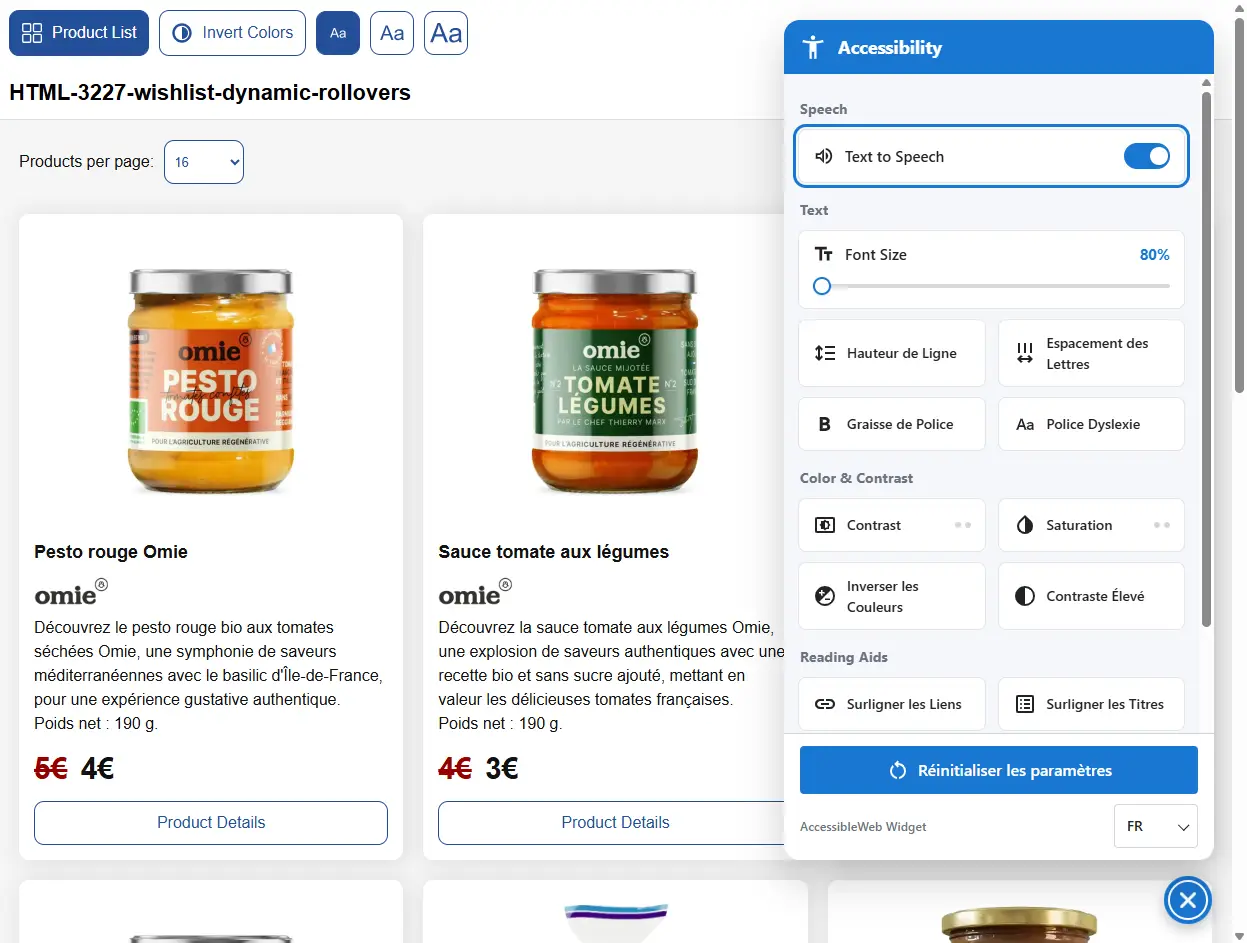
Accessible widget with text-to-speech support
The accessibility widget now includes text-to-speech support, helping users access publication content in a more flexible and inclusive way.
SEO / GEO improvements
When enabling SEO for a publication, new structured data using schema.org is added in order to improve the search engines indexation and generative engines interpretation of the catalogues we produce.
Platform
Statistics table for expiring and expired publications
The Statistics screen now includes a new table showing expiring and expired publications for selected customer accounts. Publications are sorted by expiration date to make follow-up easier.
Replace publication font files from the admin area
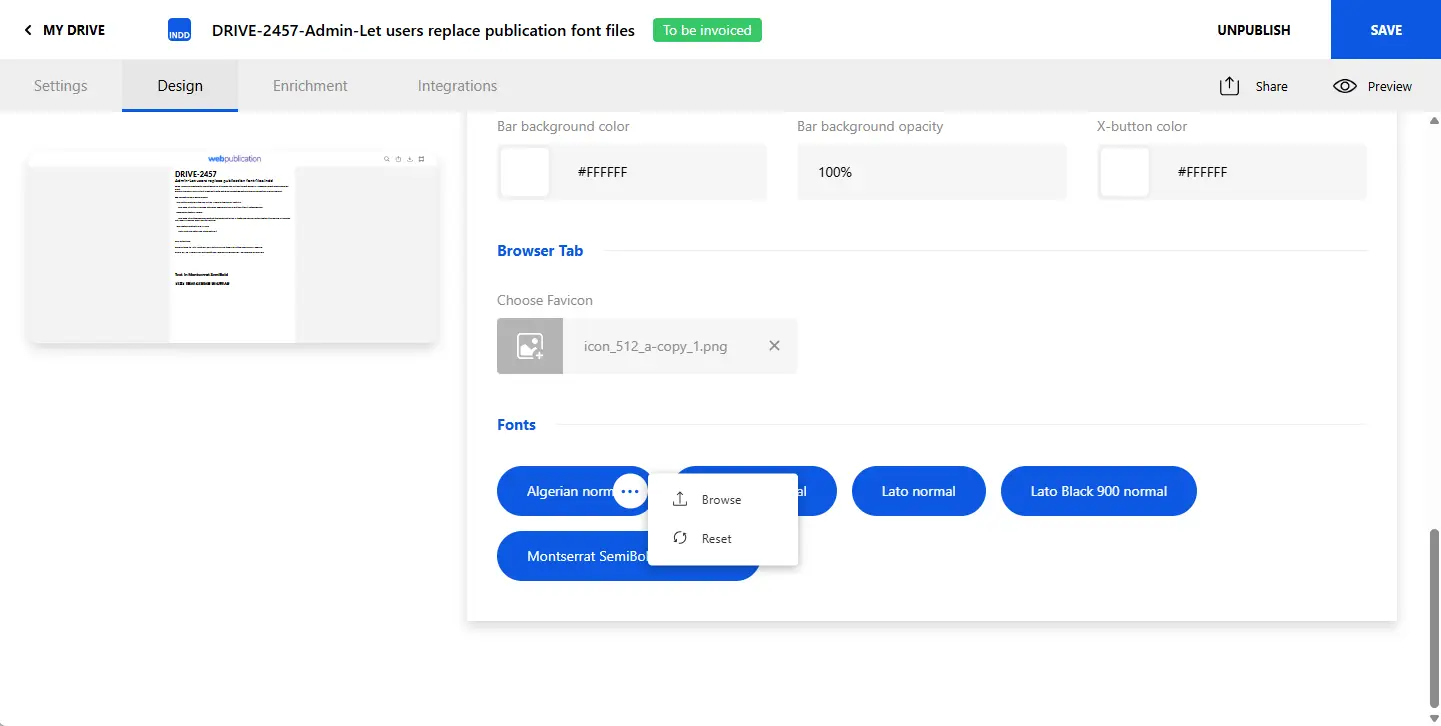
Users can now replace the font files used by a publication directly from the admin area.
In some cases, fonts exported from InDesign do not render correctly in web publications. This can happen on all browsers or only on specific ones. The issue is usually caused by InDesign optimizing the font during EPUB export, which can break the exported font file or alter how it is displayed online.
Previously, this required workarounds such as manually replacing the font by FTP, exporting text as images, or using a similar-looking font. These solutions were not ideal because they could be overwritten after a new export, reduce text accessibility and SEO, or alter the intended design.
To solve this, the Publication settings → Design tab now lists all fonts used in the publication as tags. When a user clicks a font, they can replace it with another font file. The replacement file does not need to use the same font format as the original. For example, a .ttf font can be replaced with a .otf font. This gives users more autonomy when fixing font rendering issues and helps preserve the intended design without relying on image-based text or other workarounds.
Uprez
Faster startup with background content loading
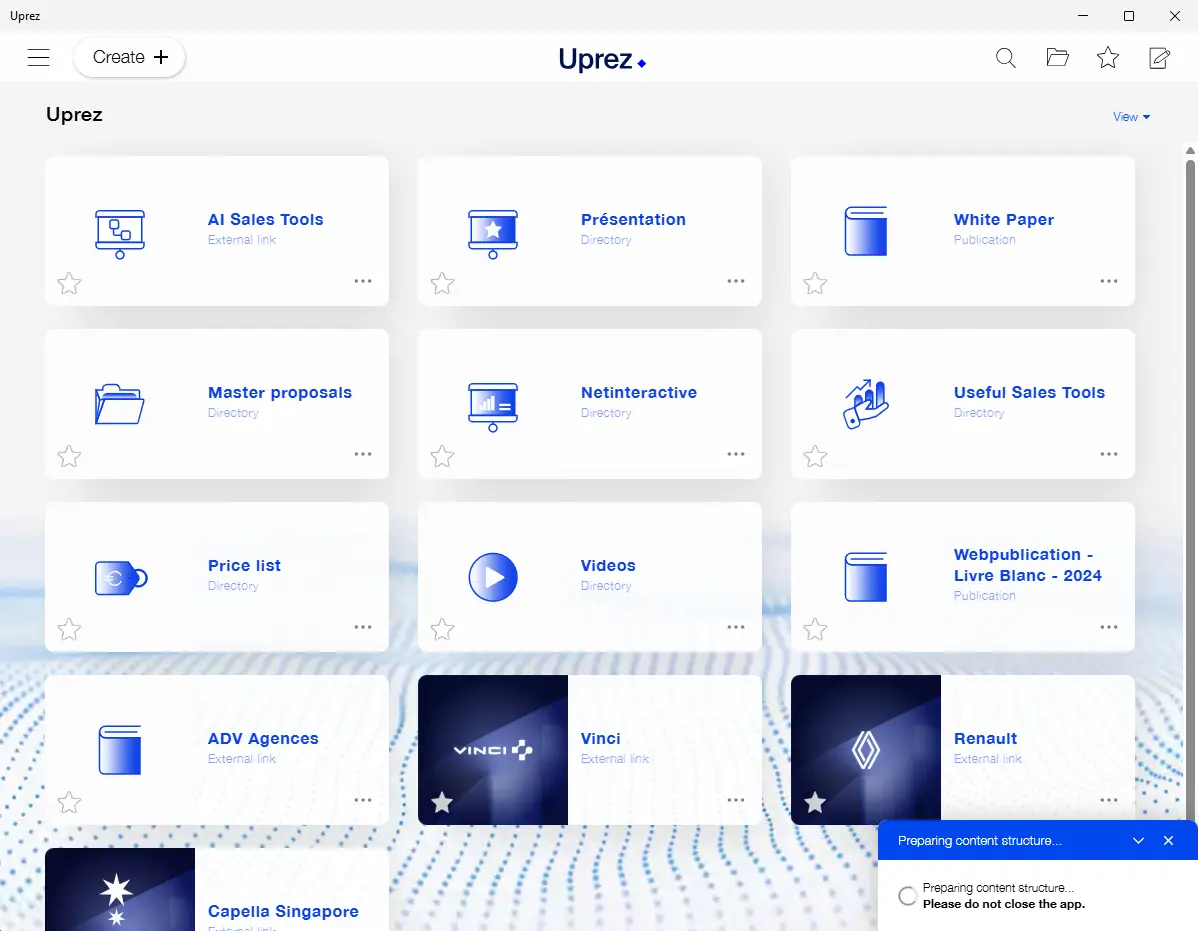
The Uprez app now starts faster by loading the content structure in the background instead of keeping users waiting on the login screen. A Content Structure toast appears in the bottom-right corner to show that the structure and thumbnails are being updated. Users can close the toast without cancelling the update, and interrupted downloads can continue while the structure update is still running.
Account switching is also more reliable: the app now clears the previous account state on logout and filters required downloads according to the active account.
Improved offline homepage and template reliability
Offline mode is now more reliable for homepage content and static pages. The welcome page is always included in required offline items, downloaded components are detected more accurately, and static pages can render without depending on menu presence.
Template styles are now reset correctly when switching accounts, preventing style contamination between accounts, such as menu button colors being reused from a previous login.
Improved image zoom and pan
Theater images now support a smoother zoom experience. On mobile, users can use pinch-to-zoom with focal-point scaling and one-finger touch panning. On desktop, the existing drag-pan behavior remains available. Image scaling has also been improved to better adapt to the available screen size.
Additional class names were also added to theater elements so that they can be styled more easily through custom.css.
Mobile folder refresh button
A new folder refresh button can now be added to the mobile header menu. When triggered, it updates the folder tree using the faster bulk structure update flow and displays a loading spinner while the update is running.
Show files in their folder
Users can now quickly locate a drive item from search results or from a selection using the new “Show in folder” context menu action. This makes it easier to move from a search result back to the item’s original folder location.
Improved sharing and link copying on Windows
The Share via copy popup has been restored on Windows after validation with the latest Windows SDK, improving the reliability of link sharing from the app.
Editor access based on folder tags
Editor users can now edit any app folder when the folder, or one of its parent folders, has a tag matching the user login. This allows more flexible access management for regional or account-specific folder structures.
Shortcut deletion has also been clarified: linked resources now delete the shortcut link instead of the underlying asset, and context menu labels make this behavior clearer.
More reliable offline resource deletion
Offline resource management is now more robust, especially on Windows. Downloads are migrated from Local Storage to IndexedDB, interrupted deletions can resume on startup, and missing dependencies are handled more reliably after an interrupted deletion.
Clear in-progress state when deleting resources
When users delete an offline resource, the thumbnail now shows a clearer deletion in progress state instead of simply removing the green downloaded icon. This makes it easier to understand that cleanup is still running.
Download all popup no longer appears when offline
Fixed an issue where the Download all popup could appear when the app was started without an internet connection.
Uprez mobile 3.72.4
- Improved image zoom and pan, including mobile pinch-to-zoom and touch panning.
- Faster startup and folder navigation thanks to background content structure updates.
- New folder refresh button available from the mobile header menu.
- New “Show in folder” action from search results or selected items.
- Improved sharing and link copying on Windows.
- Better offline homepage behavior and template style persistence across account switches.
- More reliable editor permissions for tag-scoped folders and linked-resource deletion.
- Better Office file opening on Windows.
- Reliability improvements and temporary file cleanup.



No comments.